

Many bloggers do all the right things a quality content, performing on page SEO and building backlinks yet Google still struggles to crawl their sites effectively. The issue does not lie with the content itself it lies within the websites underlying infrastructure the engine where it is not visible from the outside.
This is exactly what technical SEO is.
Just a good car requires regular servicing to keep its engine running smoothly, your website needs technical SEO so that Google can read, understand and rank it without any problem.
In this guide you will learn how to practically implement the fundamentals of technical SEO covering everything from site speed and sitemaps to robots.txt, HTTPS and Core Web Vitals right from scratch.
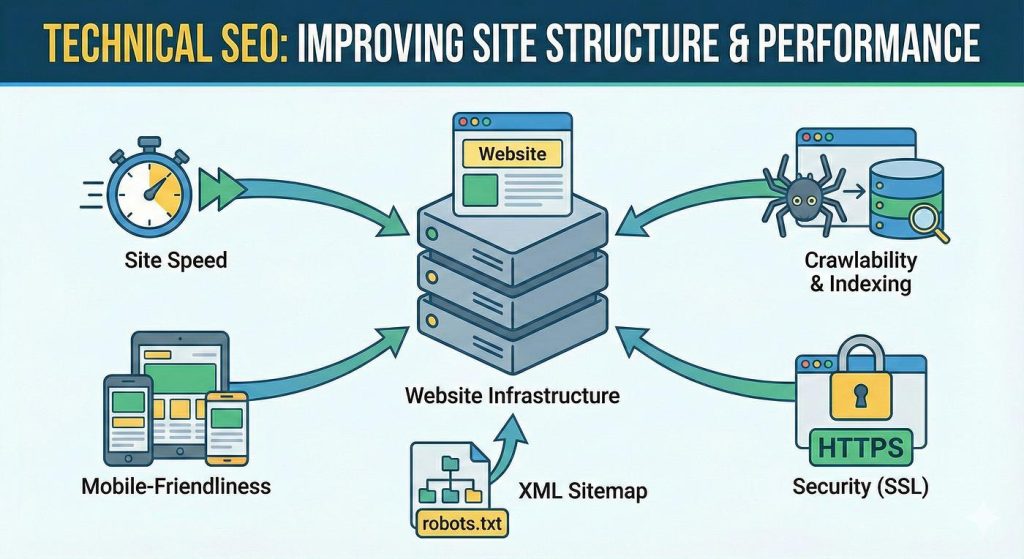
What is Technical SEO
Technical SEO involves optimizing websites backend so that search engine bots can easily crawl and index in site. its pages while also ensuring a fast and secure experience for users.
Think as the foundation of a building. On page SEO is the interior decoration and off page SEO is the external reputation but if the foundation is weak, everything drop distance.
Technical SEO answers three questions:
- Can Google find my site? (Crawlability)
- Can Google save my pages in its database? (Indexability)
- Do users enjoy using the site? (User Experience)
Only when all three are in order will your other SEO efforts truly be effective.
1. Site Speed — The First and Most Important Factor
Google has officially confirmed that page speed is a ranking factor for mobile and desktop. A slow website frustrates users, causing them to bounce For Google a high bounce rate signals page lacks value.
How fast should the site actually be?
Google’s standard is this: the first byte should arrive within 0.8 seconds, and the entire page should load within 2.5 seconds. If it takes longer than 3 seconds, 53% of mobile users abandon the site—according to Google’s own research data.
Why does site speed slow down? Common reasons:
The biggest cause is unoptimized images such as when a 3 MB photo is uploaded directly. Another major reason is heavy plugins that load extra scripts in the background. A third factor is excessive CSS and JavaScript files that the browser is forced to download repeatedly.
How to improve site speed:
images Compress — Use the WebP format or compress tools Squoosh.app. An image should ideally be under 100KB. On WordPress plugins like ShortPixel or Smush handle this automatically.
Enable caching — Use plugins like WP Rocket or W3 Total Cache. Caching means the page is generated and saved once preventing repeated server loads.
Use a CDN — Try Cloud flares free plan. A Content Delivery Network stores your sites files on various servers around the world the site loads from the server closest to the user thereby increasing speed.
Delete unused plugins — Every plugin adds extra code. Deactivate and delete any plugin that is not used.
Check speed using these tools:
- Google PageSpeed Insights — free and official
- GTmetrix — provides a detailed breakdown
- WebPageTest — for advanced users
2. Core Web Vitals — Google New Performance Standard
In 2021Google create Core Web Vitals an official ranking factor. These are three metrics that measure user experience:
Largest Contentful Paint The time it takes for the pages load to largest element.
- Good: 2.5 seconds or less
- Poor: More than 4 seconds
FID — First Input Delay (now being replaced by INP)
The time the site takes to respond when a user clicks or taps for the first time.
- Good: 100 milli seconds or less
CLS — Cumulative Layout Shift
How much elements shift while the page is loading for instance if a button suddenly moves down causing you to click the wrong spot.
- Good: 0.1 or less
How to fix:
To improve LCP, optimize the hero image and disable lazy loading for above the fold images. To fix CLS set fixed heights and widths for images and ads so that page layout stable during loading.
Go to the Core Web Vitals section in Google Search Console; specific issues affecting your site will be clearly listed there.
3. HTTPS and SSL Certificate — Security First
If your site is still on `http://`, it is a serious issue. Google has considered HTTPS a ranking signal since 2014. Browsers also label HTTP sites as Not Secure which instantly away visitor trust.
How to install SSL certificate:
Most hosting providers now offer free SSL via Let’s Encrypt. Hostinger, Bluehost and SiteGround all feature a one click SSL installation option in their control panels.
After installing SSL, make sure to:
- Set up a redirect from `http://` to `https://` — either via https access` file or a WordPress plugin.
- Check for mixed content errors — use the free tool Why No Padlock to identify which page elements are still loading via HTTP.
- Add the HTTPS property separately in Google Search Console.
4. XML Sitemap — Give Google a Roadmap
An XML Sitemap file that lists all the important pages of your website telling Google where to crawl.
Google will eventually discover your site without a sitemap but having one speeds up the process significantly, especially for new blogs.
How to create a sitemap on WordPress:
The Rank Math plugin automatically generates a sitemap.
If you use Yoast SEO: yoursite.com/sitemap_index.xml
How to submit the sitemap to Google:
- Log in to Google Search Console
- Click on the Sitemaps option in the left sidebar
- Paste the sitemap URL and click Submit
- The status should show Success if an error occurs, open the sitemap URL in your browser to check it
sitemap guideline:
Include only important pages such as blog posts and main pages. Admin pages thank you pages and search result pages should not be in the sitemap. With Rank Math, you can easily control which post types are included in the sitemap.
5. Robots.txt — Tell Google Where Not to Go
Robots.txt is a simple text file located at the root of your site yoursite.com/robots.txt. It tells Google which pages to crawl and which ones not to.
Here is what this means:
- User agent — This rule applies to all bots.
- Disallow: /wp-admin/ — Do not crawl the admin area.
- Allow: /wp-admin/admin-ajax.php — This is an exception required for WordPress.
- Sitemap: — Directly provided the sitemap address to Google.
Common mistake: Some people accidentally write `Disallow which blocks the entire site. Always check your robots.txt file using the URL Inspection tool in Google Search Console.
To view and edit robots.txt in WordPress: Rank Math, General Settings, Edit robots.txt
6. Canonical Tags — Avoiding Duplicate Content
Sometimes, the same content becomes accessible via multiple URLs. For example:
- yoursite.com/post-name
- yoursite.com/post-name/
- yoursite.com/?p=123
Google treats these three as separate pages, creating confusion about which one should rank. A canonical tag tells Google which of these is the original URL.
In WordPress, plugins like Rank Math or Yoast automatically add canonical tags you do not need to do anything manually. Just check the settings to ensure canonical tags are enabled.
if you syndicate content meaning you publish your article on another site as well you should definitely include a canonical tag pointing to your original article in that copy.
7. Mobile Friendliness — Mobile First World
Google now uses mobile first indexing, meaning it evaluates your site s mobile version before the desktop version. If the mobile version is poor, website rankings will suffer.
Check it out: Google free Mobile Friendly Test tool — search.google.com/test/mobile-friendly
Common mobile issues:
- Text is too small — font size should not be less than 16px
- Buttons are too close together — difficult to click with fingers
- Content extends beyond the screen — causes horizontal scrolling
- Pop-ups cover the entire screen
Any modern responsive WordPress theme such as Astra, GeneratePress, or Kadence is mobile friendly by default.
FAQ:
Do I need coding skills for Technical SEO? No — for WordPress users, tools like Rank Math, Yoast and Cloudflare handle 90% of the work automatically. A basic understanding is sufficient for practical implementation.
How long does it take for Google to index a site after submitting a sitemap? It can take 1–4 weeks for a new site. For an established site, it usually takes 24 to 72 hours. You can also manually request indexing via the URL Inspection tool in Google Search Console.
Is a free SSL certificate sufficient for Google rankings? Yes — the free SSL certificate from Lets Encrypt is perfectly adequate for Google. Paid SSL certificates are primarily relevant for e-commerce or financial sites.
Does robots.txt permanently hide a page? No — robots.txt only prevents crawling, not indexing. If you want to prevent a page from being indexed use a noindex meta tag instead of robots.txt.
Conclusion — Set Up SEO Once, Maintain It Later
Technical SEO is not a one time task but the good news is that once it is set up correctly, it does not require much ongoing maintenance.
Optimizing site speed implementing HTTPS, submitting a sitemap, checking robots.txt and enabling canonical tags all of this can be done in a single day. After simply check Google Search Console once a month and fix any issues that arise.
When your technical foundation is strong, both your on page and off page SEO efforts will work more effectively. It is the combination of all three that secures a solid ranking on Google.
